What's inside this article:
- Basic information
- Upload a video file
- Set the thumbnail for a horizontal video
- Set the thumbnail for a vertical video
- Use the preview player
Basic information
User groups: Contributor_2020, Journalist_2020, Editor_2020, Master Editor_2020, Multimedia Upload_2020
About user groups
This article explains how to set the thumbnail for a video in Pangea CMS.
A thumbnail (sometimes called a 'poster' or 'player image') is a static image that appears in the video player before playback begins. A strong thumbnail makes your video more noticeable, increases engagement, and gives viewers a quick visual preview of what to expect.

Upload a video file
To upload a video to Pangea CMS, go to Create > Multimedia > Video.

For detailed upload instructions, see our Uploading video files article.
Open the Video edit page
As soon as the upload starts, Pangea CMS saves your video. The default title for the video is the name of the video file.
You can open the edit page for the video using one of these methods:
- (A): Click the Edit button in the upload manager.
- (B): Find the video on the Search page and click the title. For instructions on searching for content, see our Running a content search article.

The remaining sections in this article explain how to set the thumbnail on the Video edit page.
Set the thumbnail for a horizontal video
For a horizontal video, you only need to consider the horizontal thumbnail.
Set the thumbnail using one of these methods:
- Video frame: Use a frame from the video file.
- Website teaser: Use the teaser image for the video.
- Upload image: Upload a custom image.
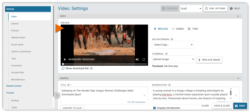
To choose your preferred option, go to Video > Thumbnail.
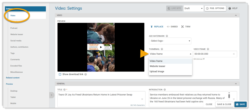
Find instructions for each method below:
Video frame (horizontal video)
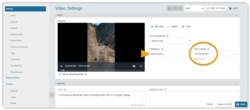
You can use a frame from the video file as the thumbnail. This is the quickest way to set the thumbnail, but the visual quality may be lower.
Follow these steps:
- Under Thumbnail, select Video frame.
- Under Preview, use the player to identify the frame you want to use.
- Under Video frame, enter the time of the frame.
Your chosen frame appears in the preview player. For information about how to use the player, go to Use the preview player.
You can use the horizontal teaser image as the thumbnail. This option lets you select a high-resolution image for better visual quality. You can also crop the image manually.
NOTE: The image you want to use must already be uploaded to Pangea CMS. For upload instructions, see our Uploading images article.
To add a horizontal teaser image and use it as the thumbnail:
- Under Thumbnail, select Website teaser.
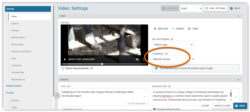
- Select Website teaser in the left menu.

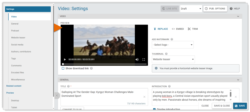
- Under Horizontal image, select the image you want to use.

If necessary, select the Crop image button to crop the image. Manual cropping maintains the standard 16:9 Aspect ratio describes the proportional relationship between the width and height of an image (such as 16:9 or 3:4). Aspect ratio determines the shape of an image but not its size. Learn more..
In the Video panel, the horizontal teaser image now appears in the preview player.
Upload image (horizontal video)
You can quickly upload an image from your device to use as the thumbnail. This option lets you select a high-resolution image for better visual quality.
When you upload an image to use as a video thumbnail:
- You do not need to add the standard image metadata, such as the source and caption.
- The image is not searchable in Pangea CMS and is not usable on other pages.
- You cannot manually crop the image on the Video edit page.
To upload an image and use it as the thumbnail:
- Under Thumbnail, select Upload image.
- Select the Upload image button.
- Perform one of these actions:
- Drag and drop the image file into the box.
- Select Browse files, navigate to the file location, and select the file.

In the Video panel, the uploaded image now appears in the preview player.
Set the thumbnail for a vertical video
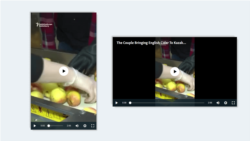
For a vertical video, you need to consider the horizontal and vertical thumbnails. This is because a vertical video may appear in a vertical player or a horizontal player with black bars on each side (pillarboxing). The orientation depends on the placement and viewing device.
Set the thumbnail using one of these methods:
- Website teaser: Use the teaser image for the video (recommended for vertical videos).
- Video frame: Use a frame from the video file.
- Upload image: Upload a custom image.
You must use the same method for both thumbnails (horizontal and vertical).
To choose your preferred option, go to Video > Thumbnail.
Find instructions for each method below:
We recommend using the Website teaser option for vertical video thumbnails. This gives you full control over how both versions of the thumbnail look. You can:
- Use the same image for the horizontal and vertical thumbnails, but crop the two versions separately for best visual quality.
- Use different images for the horizontal and vertical thumbnails.
Follow these steps:
- Go to Video > Thumbnail and select Website teaser.
- Select Website teaser in the left menu.
- Under Horizontal image, select the horizontal thumbnail image.
- Under Vertical image, select the vertical thumbnail image.
- To manually crop either image, select the Crop image button.

In the Video panel, the horizontal teaser image now appears in the preview player.
On the public website, the vertical image appears in the vertical player. The horizontal image appears in the horizontal player.

NOTE: If you do not select a vertical teaser image, the central section of the horizontal image appears as the vertical thumbnail.
Video frame (vertical video)
You can use a frame from the video file as the thumbnail for a vertical video. The steps are the same as for a horizontal video.
When you use a video frame as the thumbnail for a vertical video:
- Vertical player: The thumbnail is the vertical video frame.
- Horizontal player: The thumbnail is the vertical video frame with black bars on each side.
Upload image (vertical video)
You can quickly upload an image from your device to use as the thumbnail for a vertical video. The steps are the same as for a horizontal video.
You can upload a vertical or horizontal image.
Vertical image
When you upload a vertical image to use as the thumbnail for a vertical video:
- Vertical player: The thumbnail is the vertical image.
- Horizontal player: The thumbnail is the vertical image with black bars on each side.
Horizontal image
When you upload a horizontal image to use as the thumbnail for a vertical video:
- Vertical player: The thumbnail is the central section of the horizontal image. Pangea CMS automatically crops the image. You cannot crop the image manually.
- Horizontal player: The thumbnail is the horizontal image.
Use the preview player
After Pangea CMS finishes processing your video, you can watch the video and move to particular frames in the preview player. This can help you identify the best frame to use as the video thumbnail.
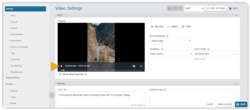
Click the play button to start playing the video. You can use the following keyboard shortcuts:
- Space bar: Pause or play the video.
- Right arrow key: Move 5 seconds forward.
- Left arrow key: Move 5 seconds backward.
NOTE: Changing the frame that is visible in the preview player does not change the thumbnail. To change the thumbnail, enter a new time under Video frame.