What's inside this article:
- Basic information
- How it works
- Common strategies
- Size, organization, and layout
- Widget selection
- The YMAL header
- Example YMAL layouts
Basic information
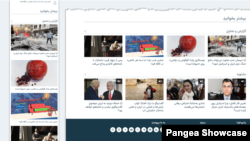
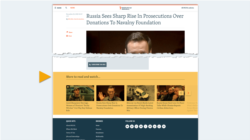
You Might Also Like (YMAL) is a collection of widgets that appears below the main content on articles and other content pages. An engaging and well-organized YMAL can increase the time spent on your site by encouraging readers to open other pages.
This article provides guidance for web editors on how to create YMALs, including tips on how to increase engagement.
How it works
YMAL offers a semi-automated approach for sharing links on content pages:
- What's manual: Web editors create YMALs from the dedicated YMAL list page in Pangea CMS. You choose the content in each YMAL and assign the YMAL to one or more categories.
- What's automated: Each content page automatically displays the YMAL that is assigned to its primary category. All pages with the same primary category display the same YMAL.
NOTE: Displaying YMAL is optional. If the primary category for a content page does not have an assigned YMAL, the page does not display a YMAL.
For detailed instructions on how to manage YMALs in Pangea CMS, see the following article:
Common strategies
Choose from multiple strategies for YMAL content:
- Category-based: Show more stories from the same category. This approach requires one YMAL per category.
- Top stories: Show stories from your homepage. This approach requires fewer YMALs, with each YMAL assigned to multiple categories.
Choose a strategy
Consider how your audience typically navigates your site:
- Category-based YMALs work best for visitors who browse your homepage and select content that interests them.
- Top-story YMALs work best for visitors who arrive directly on content pages from search engines or social media.
Size, organization, and layout
Consider these guidelines when creating YMALs:
Limit the size
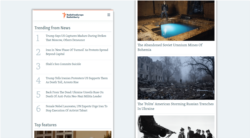
Keep the list of content short and focused. Consider that for readers scrolling on mobile, the content is displayed in one list with every item occupying one row. An overly long list can overwhelm your readers, reducing the chance of engagement.
In most cases, we recommend:
- A maximum of 2 rows of content on desktop
- A maximum of 16 items / links
Give each widget a clear purpose
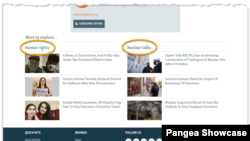
A widget may show more content from the same category, recent news headlines, or any curated collection of content. Whatever you choose, ensure readers can instantly understand why that content appears there. For YMALs with multiple widgets, use a short, descriptive title for each widget to clarify its purpose.
Ensure visual consistency
If your site has multiple YMALs, try to use a similar layout for each. Visual consistency reduces cognitive load, helping readers to instantly recognize what they are looking at and how to use it.
TIP: For examples that follow these guidelines, go to Example YMAL layouts.
Widget selection
A YMAL can include one or multiple widgets. YMALs commonly include the following widgets:
Content widget
Content widgets show links to content pages. This is a highly flexible widget type that offers a wide range of layout options.
TIP: You can configure a Content widget to only show content from a particular category. This strategy is helpful for category-based YMALs.
For more information, see the following article:
Media slider widget
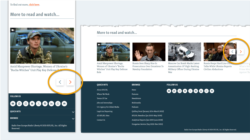
On a Media slider widget, visitors can scroll through content links on a horizontal slider reel. This is ideal for mobile devices, where screen space is limited. Share more links without forcing visitors to scroll endlessly down the page.
Tips
- If you use multiple widgets, place the slider at the bottom, as engagement with any widgets below a horizontal slider can be reduced.
- For a more cohesive design, give the slider a white background. This makes it clear that the slider is part of the YMAL and not a separate element.
- You can use a 'Media slider' widget to share any type of content (not just media items). For example, the slider might contain a collection of articles.
For more information, see the following article:
Trends widget
Trends widgets list 'trending' content pages. This means content from your site that has received a high number of views within a specified time period.
TIP: You can configure a Trends widget to only show content from a particular category. This strategy is helpful for category-based YMALs.
For more information, see the following article:
The YMAL header
The YMAL header introduces the links inside the YMAL. Every YMAL on your site has the same header.
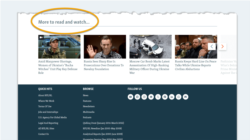
NOTE: If your site has multiple YMALs, you cannot customize the header for each YMAL individually. You need to use the same header for all YMALs.
Site admins can update the text for the YMAL header from the site localization page in Pangea CMS. This text is managed through the following key:
| Key name | Global value |
|---|---|
| Responsive.Section.YouMayLike.Header | Continue reading |
Optimize the YMAL header
Ensure the YMAL header accurately reflects your YMAL strategy. Simply translating the global value may not be optimal in all cases. For example, 'Continue reading' is an appropriate choice for YMALs with article links. If your YMALs also link other types of content, you might use a different header. Some examples include:
- More to explore
- Discover more
- Don't miss
- More stories
- More to read and watch
Example YMAL layouts
NOTE: Pangea has provided the example layouts below for inspiration and guidance. Feel free to use alternative layouts, or adapt and combine our examples to meet your exact needs.
Browse the example layouts below:
1x 'Big images' widget
A clean and simple layout with big images for high visibility.
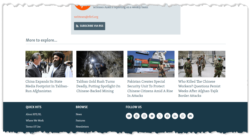
This layout uses one layout block:
- 4 Columns: 4 column widget
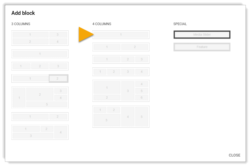
This layout contains one widget:
| Widget | Layout | Number of items |
|---|---|---|
| Content widget | Big images | 4 |
Tips:
- Give the widget a distinct purpose. It may show more items from the same category, your latest news headlines, or any other curated collection.
- The YMAL header effectively labels the content, so the widget does not need a title.
1x 'Media slider' widget
A clean and simple layout with big images for high visibility. Lets you share more links without increasing the length of the page.
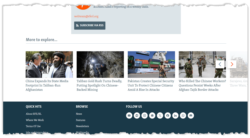
This layout uses one layout block:
- Special: Media slider
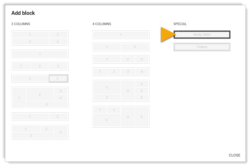
This layout contains one widget:
| Widget | Layout | Number of items |
|---|---|---|
| Content widget | Media slider (light background) | 5-20 |
Tips:
- Give the widget a distinct purpose. It may show more items from the same category, your latest news headlines, or any other curated collection.
- The YMAL header effectively labels the content, so the widget does not need a title.
4x 'Big images' widgets with categories
A clean and simple layout with big images for high visibility. Lets you share content from several categories with clear labels.
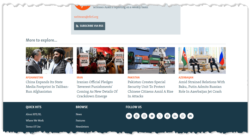
This layout uses one layout block:
- 4 Columns: 4x 1 column
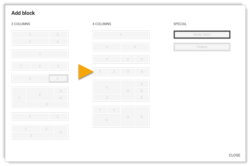
This layout contains four widgets:
| Widget | Layout | Number of items |
|---|---|---|
| Content widget | Big images | 1 (with category) |
| Content widget | Big images | 1 (with category) |
| Content widget | Big images | 1 (with category) |
| Content widget | Big images | 1 (with category) |
Tips:
- The YMAL header effectively labels the content, so the widget does not need a title.
- Using Auto mode, configure each widget to show the latest item from a particular category.
2x 'Medium images' widgets
A clean layout for sharing two distinct collections with equal priority. Ideal for 2 child categories inside a parent category.
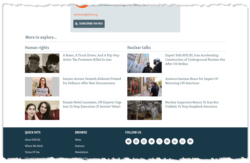
This layout uses one layout block:
- 4 Columns: 2x 2 column
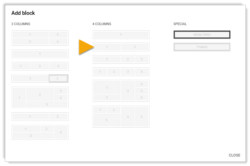
This layout contains two widgets:
| Widget | Layout | Number of items |
|---|---|---|
| Content widget | Medium images | 3 |
| Content widget | Medium images | 3 |
Tips:
- Because the YMAL contains 2 distinct widgets, give each widget a short, descriptive title. The title should make the widget purpose obvious for readers.
- The Medium images layout is ideal for displaying introductions. You may show a short introduction with each item.
1x 'Big images' widget + 1x 'List' widget
A compact layout for sharing 2 prominent links with a list of other content. Ideal for prioritizing your high-value content.
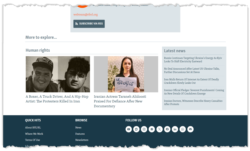
This layout uses one layout block:
- 3 Columns: 2 column + gray column
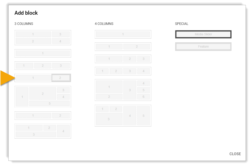
This layout contains two widgets:
| Widget | Layout | Number of items |
|---|---|---|
| Content widget | Big images | 2 |
| Content widget | List | 5 |
Tips:
- Give each widget a distinct purpose. You can show more items from the same category, your latest news headlines, or any other curated collection.
- Because the YMAL contains 2 distinct widgets, give each widget a short, descriptive title. The title should make the widget purpose obvious for readers.
1x 'List' widget + 1x 'Big images' widget (2 rows)
A clean layout with big images and larger text for high visibility. Lets you share two distinct collections of content one below the other.
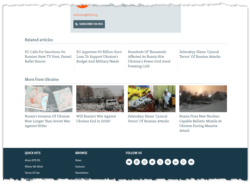
This layout uses two layout blocks:
- 4 Columns: 4 column widget
- 4 Columns: 4 column widget
This layout contains two widgets:
| Widget | Layout | Number of items |
|---|---|---|
| Content widget | List (Bigger font) | 4 |
| Content widget | Big images | 4 |
Tips:
- Give each widget a distinct purpose. You can show more items from the same category, your latest news headlines, or any other curated collection.
- Because the YMAL contains 2 distinct widgets, give each widget a short, descriptive title. The title should make the widget purpose obvious for readers.
1x 'List' widget + 1x 'Media slider' widget (2 rows)
A clean layout with big images and larger text for high visibility. Ideal for sharing two distinct collections of content one below the other. The 'Media slider' widget lets you share more links without increasing the length of the page.
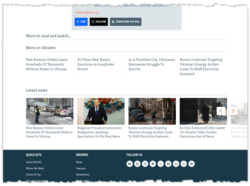
This layout uses two layout blocks:
- 4 Columns: 4 column widget
- Special: Media slider

This layout contains two widgets:
| Widget | Layout | Number of items |
|---|---|---|
| Content widget | List (Bigger font) | 4 |
| Content widget | Media slider | 5-20 |
Tips:
- Give each widget a distinct purpose. You can show more items from the same category, your latest news headlines, or any other curated collection.
- Because the YMAL contains 2 distinct widgets, give each widget a short, descriptive title. The title should make the widget purpose obvious for readers.
1x 'List' widget + 1x 'Thumbnails' widget (2 rows)
A clean layout with larger text for high visibility. Ideal for sharing two distinct collections of content one below the other.
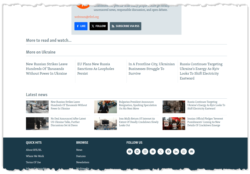
This layout uses two layout blocks:
- 4 Columns: 4 column widget
- 3 Columns: 3 column widget
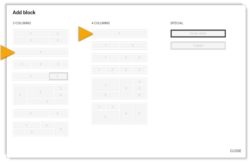
This layout contains two widgets:
| Widget | Layout | Number of items |
|---|---|---|
| Content widget | List (Bigger font) | 4 |
| Content widget | Thumbnails | 6 |
Tips:
- Give each widget a distinct purpose. You can show more items from the same category, your latest news headlines, or any other curated collection.
- Because the YMAL contains 2 distinct widgets, give each widget a short, descriptive title. The title should make the widget purpose obvious for readers.
1x 'Big images' widget + 1x 'Trends' widget
A compact layout with big images for high visibility. Lets you share 2 prominent links with a list of trending content. Ideal for prioritizing your high-value content.
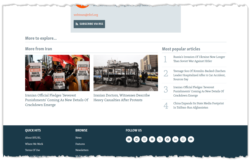
This layout uses one layout block:
- 3 Columns: 2 column + 1 column
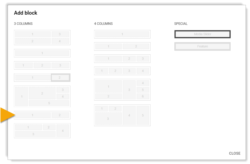
This layout contains two widgets:
| Widget | Layout | Number of items |
|---|---|---|
| Content widget | Big images | 2 |
| Trends widget | N/A | 4 |
Tips:
- Give each widget a distinct purpose:
- Content widget: Show more items from the same category, your latest news headlines, or any other curated collection.
- Trends widget: Show trending content from the same category, or trending content from across your website.
- Because the YMAL contains 2 distinct widgets, give each widget a short, descriptive title. The title should make the widget purpose obvious for readers.
1x 'Thumbnails' widget + 1x 'Trends' widget
A compact layout for sharing a larger collection of curated links with a list of trending content.
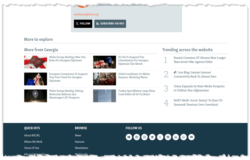
This layout uses one layout block:
- 3 Columns: 2 column + 1 column
This layout contains two widgets:
| Widget | Layout | Number of items |
|---|---|---|
| Content widget | Thumbnails | 6 |
| Trends widget | N/A | 4 |
Tips:
- Give each widget a distinct purpose:
- Content widget: Show more items from the same category, your latest news headlines, or any other curated collection.
- Trends widget: Show trending content from the same category, or trending content from across your website.
- Because the YMAL contains 2 distinct widgets, give each widget a short, descriptive title. The title should make the widget purpose obvious for readers.
1x 'Medium images' widget + 1x 'Trends' widget
A compact layout for sharing 2 prominent links with a list of trending content. The 'Medium images' layout is ideal for displaying introductions.
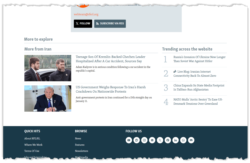
This layout uses one layout block:
- 3 Columns: 2 column + 1 column
This layout contains two widgets:
| Widget | Layout | Number of items |
|---|---|---|
| Content widget | Medium images | 2 |
| Trends widget | N/A | 4 |
Tips:
- Give each widget a distinct purpose:
- Content widget: Show more items from the same category, your latest news headlines, or any other curated collection.
- Trends widget: Show trending content from the same category, or trending content from across your website.
- Because the YMAL contains 2 distinct widgets, give each widget a short, descriptive title. The title should make the widget purpose obvious for readers.
1x 'Trends' widget + 1x 'Big images' widget (2 rows)
A clean layout with big images for high visibility. Lets you share a curated collection of links with a larger list of trending content.
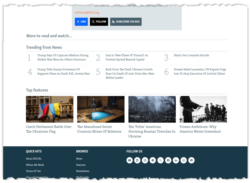
This layout uses two layout blocks:
- 3 Columns: 3 column widget
- 4 Columns: 4 column widget
This layout contains two widgets:
| Widget | Layout | Number of items |
|---|---|---|
| Trends widget | N/A | 6 |
| Content widget | Big images | 4 |
Tips:
- Give each widget a distinct purpose:
- Trends widget: Show trending content from the same category, or trending content from across your website.
- Content widget: Show more items from the same category, your latest news headlines, or any other curated collection.
- Because the YMAL contains 2 distinct widgets, give each widget a short, descriptive title. The title should make the widget purpose obvious for readers.
1x 'Thumbnails' widget + 1x 'Podcast' widget
A compact layout for sharing the latest episode from a podcast with a larger collection of related links.
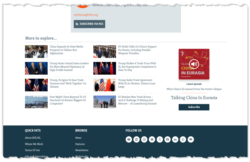
This layout uses one layout block:
- 3 Columns: 2 column + 1 column
This layout contains two widgets:
| Widget | Layout | Number of items |
|---|---|---|
| Content widget | Thumbnails | 8 |
| Podcast widget | Standard | N/A |
Tips:
- Ensure the podcast directly relates to the category topic. Readers should immediately see the connection.
- The Content widget should show more content from the same category (to align with the Podcast widget).
- The YMAL header effectively labels the content, so the widgets do not need titles.
1x 'Multimedia' widget + 1x 'Trends' widget + 1x 'Thumbnails' widget
A compact layout with a horizontal video player. Visitors can watch without leaving the page.
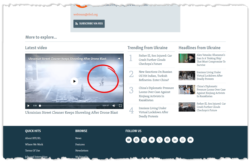
This layout uses one layout block:
- 4 Columns: 2 column + 2x 1 column
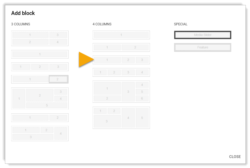
This layout contains three widgets:
| Widget | Layout | Number of items |
|---|---|---|
| Multimedia widget | Horizontal player | 1 |
| Trends widget | N/A | 4 |
| Content widget | Thumbnails | 4 |
Tips:
- Give each widget a distinct purpose:
- Multimedia widget: Show a related video from the same category or any other high-interest video content.
- Trends widget: Show trending content from the same category, or trending content from across your website.
- Content widget: Show more items from the same category, your latest news headlines, or any other curated collection.
- Because the YMAL contains 3 distinct widgets, give each widget a short, descriptive title. The title should make the widget purpose obvious for readers.