What's inside this article:
Basic information
User groups: Contributor_2020, Journalist_2020, Editor_2020, Master Editor_2020
About user groups
This article explains how to create a new snippet in Pangea CMS and then request approval from a reviewer.
For general information about this content type, see the following article:
Roles
The process for creating a new snippet normally involves two people:
- Journalist: Completes the editorial settings in Pangea CMS (such as the title and introduction) and prepares the snippet for publishing.
- Reviewer: Reviews the custom code in Pangea CMS and approves it for publishing. The reviewer may be the same person who writes the code (the coder).
This article is for journalists and assumes you already have the code to paste into Pangea CMS. For other scenarios, see the following articles:
- Approving a dynamic infographic or snippet (if you are the reviewer)
- Publishing an approved dynamic infographic or snippet (if an expert coder already created and approved the snippet)
NOTE: Pangea CMS automatically recognizes and approves Datawrapper code. For details, see our Sharing visuals created in Datawrapper article.
Create a new snippet
Go to Create > Interactive > Snippet in Pangea CMS.
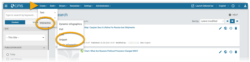
A dialog opens, which guides you through the required settings one step at a time. Complete the required settings and then save your new snippet:
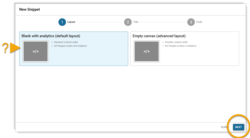
Select a layout
Under Layout, select a layout.
Only two layouts are available for a snippet:
- Blank with analytics (default)
- Empty canvas (advanced)
In most cases, keep Blank with analytics selected. This ensures that engagement with the snippet can be properly tracked through tools such as Adobe Analytics.
For detailed information about the differences between these layouts, see the following article:
After selecting a layout, click Next.
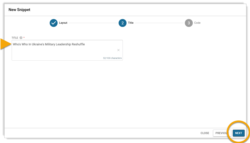
Add the title
Under Title, add a clear and descriptive title to help other Pangea CMS users identify the snippet. Your title does not appear on the published snippet.
After adding the title, click Next.
Paste the code
Under Code, paste your code.
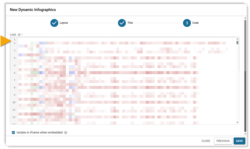
In most cases, keep Isolate in iFrame when embedded ticked. Only untick this setting in specific cases, and only with agreement from an expert coder.
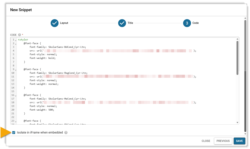
Save the snippet
After pasting the code, click Save.
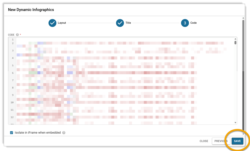
After you click Save, Pangea CMS checks for the following:
- Datawrapper code: If the code comes from Datawrapper, Pangea CMS automatically approves it.
- Forbidden code: If Pangea CMS detects forbidden code, the code is flagged and you cannot save the snippet.
For detailed information about auto-approval for Datawrapper code, see the following article:
If Pangea CMS does not detect any issues, it saves the snippet. The dialog closes and the edit page for the snippet opens. The snippet has the Draft status.
Check the preview
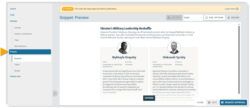
On the edit page, you can immediately check how the published snippet will look with the current code.
Click Preview in the left menu. You can preview the snippet on the following devices:
- Desktop
- Tablet
- Mobile
Complete settings
On the edit page, you can complete these optional settings:
Categories
Add one or more categories via General > Categories.
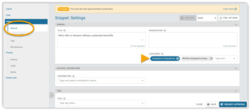
For snippets, categories are visible internally in Pangea CMS and support internal organization. This means:
- Category names do not appear on published snippets.
- Snippets do not appear on category pages.
Introduction
You can add an introduction via General > Introduction.
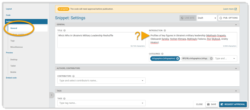
For snippets, introductions are visible internally in Pangea CMS. You can use this space to provide more information about the snippet for other Pangea CMS users. You can also enter keywords to help users find the snippet when searching in Pangea CMS.
Other settings
- Contributors: Assign contributors. Contributor names are visible internally for RFE/RL payroll but do not appear on the public site.
- Tags: Assign tags to organize content internally in Pangea CMS.
- Miscellaneous: Add internal notes that are visible only in Pangea CMS.
Request approval
A reviewer must approve the snippet before publication.
Two options are available:
Request approval for immediate publication
When you follow these steps, the snippet is immediately published after a reviewer approves it. You do not need to return to the edit page and manually publish it.
To request approval with immediate publication:
- Select Published in the selector.
- Select Request approval.
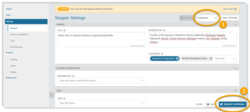
The edit page closes. The snippet is immediately published after a reviewer approves it.
Request approval in draft
When you follow these steps, the snippet keeps the Draft status after a reviewer approves it. You can then return to the edit page and manually publish it at the right moment.
To request approval in draft:
- Keep Draft selected in the selector.
- Select Request approval.
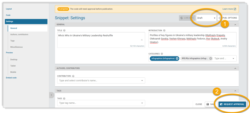
The edit page closes. After a reviewer approves the snippet, manually publish it. For instructions, see the following article:
Pangea CMS can notify you every time a snippet that you created is approved. For instructions, see the following article: