What's inside this article:
- Basic information
- Publish editorial changes
- Make code changes and request approval
- Publish new Datawrapper code
Basic information
User groups: Journalist_2020, Editor_2020, Master Editor_2020
About user groups
This article explains how to update a dynamic infographic or snippet that is already published.
For general information about these content types, see the following article:
Code and editorial changes
When you update a published infographic or snippet, different rules apply, depending on the type of changes you make:
- Code changes: These changes require review and approval before publishing.
- Editorial changes: You can publish these changes immediately, without approval.
Publish editorial changes
On the edit page for a dynamic infographic or snippet, all settings on the Settings subpage are editorial. You can publish changes to these settings immediately without approval.
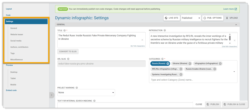
This includes settings on all the following panels:
- General
- Website teaser
- Social media
- Authors, contributors
- Tags
- Miscellaneous
To publish editorial changes:
- Make your changes.
- Click Publish or Publish & close.
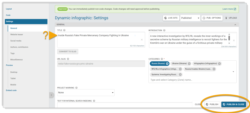
Your changes are now published.
Due to caching, changes may take up to 5 minutes to appear on the site. For details, see the following article:
Make code changes and request approval
On the edit page for a dynamic infographic or snippet, all settings on the following subpages are code settings:
- Layout
- Code
Changes to these settings need approval before publication. This means changes to the following specific settings:
- Code: Making any changes in the Code box.
- Isolate in iFrame when embedded: Changing whether this setting is ticked.
- Layout: Selecting a different layout.
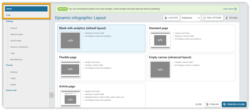
To make code changes and request approval:
- Make your changes.
- Click Request approval.
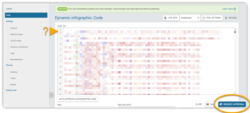
The edit page closes. The previous version of the infographic or snippet stays published until a reviewer approves your changes.
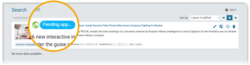
Your infographic or snippet now shows two statuses on the Search list (a publication status and an approval status):
- Published: The infographic or snippet remains live on your website.
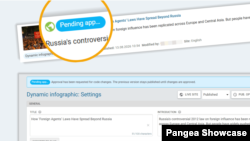
- Pending approval: The infographic or snippet has unpublished changes that are waiting for approval from a reviewer. The changes are immediately published after a reviewer approves them.
Publish new Datawrapper code
Pangea CMS automatically recognizes and approves code from Datawrapper. You can paste new Datawrapper code and publish the change without requesting approval.
Follow these steps on the edit page for the dynamic infographic or snippet:
- On the Code subpage, paste the new Datawrapper code.
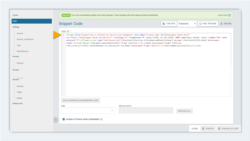
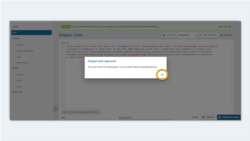
- Click Auto-approve Datawrapper code. Pangea CMS checks for Datawrapper code.
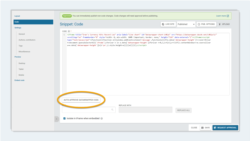
- If Pangea CMS recognizes Datawrapper code, you see one of these messages:
- Dynamic infographic auto-approved
- Snippet auto-approved
- Click OK to close the dialog. The change is now approved.
- Click Publish or Publish & close.
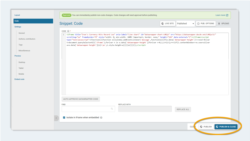
The new Datawrapper code is immediately published.
Due to caching, changes may take up to 5 minutes to appear on the site. For details, see the following article: