What's inside this article:
- Basic information
- Find the approved dynamic infographic or snippet
- Complete the editorial settings
- Publish the dynamic infographic or snippet
Basic information
User groups: Journalist_2020, Editor_2020, Master Editor_2020
About user groups
This article explains how to publish a dynamic infographic or snippet that has already been approved by a reviewer.
For general information about these content types, see the following article:
Roles
The process for creating a new infographic or snippet normally involves two people:
- Journalist: Completes the editorial settings in Pangea CMS (such as the title and introduction) and prepares the infographic or snippet for publishing.
- Reviewer: Reviews the custom code in Pangea CMS and approves it for publishing. The reviewer may be the same person who writes the code (the coder).
This article is for journalists. The steps assume that the infographic or snippet is already created and approved. For other scenarios, see the following articles:
- Approving a dynamic infographic or snippet (if you are the reviewer)
- Creating a dynamic infographic (if you need to create a new infographic)
- Creating a snippet (if you need to create a new snippet)
Find the approved dynamic infographic or snippet
Pangea CMS can notify you every time a dynamic infographic or snippet that you created is approved. For instructions, see the following article:
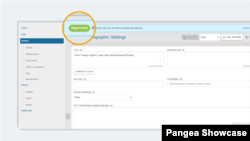
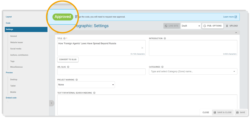
On the edit page, you see the Approved badge. This signals that a reviewer has already approved the infographic or snippet for publishing.
Complete the editorial settings
Prepare the dynamic infographic or snippet for publishing by completing the editorial settings on the edit page.
Code and editorial settings
Two types of settings are available:
- Editorial: Settings that do not affect the code (such as the title and introduction)
- Code: Settings that affect the code
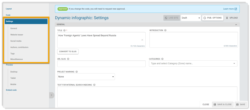
All settings on the Settings subpage are editorial. This includes settings on all the following panels:
- General
- Website teaser
- Social media
- Authors, contributors
- Tags
- Miscellaneous
You can update these settings without further approval. For information about the settings, see the following articles:
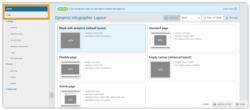
All settings on the following subpages are code settings:
- Layout
- Code
A reviewer has already reviewed and approved these settings.
If you change a code setting, the main action buttons in the bottom-right corner immediately change:
- You see the Request approval button.
- You need further approval before publishing.
Publish the dynamic infographic or snippet
Once the necessary editorial settings are complete, you can publish:
- Select Published in the selector.
- Click Publish or Publish & close.
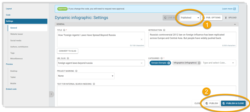
The infographic or snippet is now published.