What's inside this article:
- Basic information
- Approve code pasted by a journalist
- Approve your own code as an expert coder
- Enable notifications
Basic information
User groups: Master Editor_2020 + Infographics Approval, Site Admin_2020 + Infographics Approval
About user groups
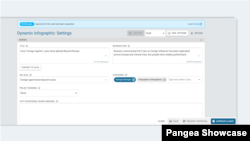
This article explains how to approve a dynamic infographic or snippet in Pangea CMS.
For general information about these content types, see the following article:
All new infographics and snippets need approval before publishing. This is essential to ensure:
- Quality: The code cannot negatively impact user experience on the website.
- Security: The code does not present a security risk.
Roles
The process for creating a new infographic or snippet normally involves two people:
- Journalist: Completes the editorial settings in Pangea CMS (such as the title and introduction) and prepares the infographic or snippet for publishing.
- Reviewer: Reviews the custom code in Pangea CMS and approves it for publishing. The reviewer may be the same person who writes the code (the coder).
This article is for reviewers. For journalist instructions, see the following articles:
NOTE: Pangea CMS automatically recognizes and approves Datawrapper code. For details, see our Sharing visuals created in Datawrapper article.
Approve code pasted by a journalist
A journalist can create a dynamic infographic or snippet by pasting code from an external platform. After creating the infographic or snippet in Pangea CMS, the journalist requests approval.
To review and approve an infographic or snippet:
- Find infographics and snippets that are waiting for review
- Check code settings
- Approve the infographic or snippet
Find infographics and snippets that are waiting for review
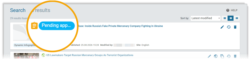
If an infographic or snippet is waiting for review, it has the Pending approval approval status on the Search list. It also has one of these publications statuses:
- Waiting: The infographic or snippet will be immediately published after you approve it.
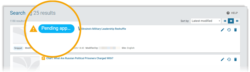
- Draft: The infographic or snippet will keep the Draft status after you approve it. A journalist can then publish it at the right time.
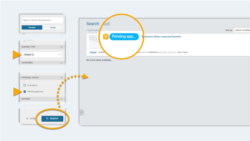
You can adjust the filters to see only infographics and snippets with the Pending approval status. Follow these steps:
- Click Clear to remove any previous filters.
- Under Content type, select Dynamic infographic and/or Snippet.
- Under Approval status, select Pending approval.
- Click Search to apply your filters.
The Search list reloads.
To open the edit page for an item on the list, click the title or the Edit button.
For detailed information about using search in Pangea CMS, see the following article:
Check code settings
The review process focuses on the quality and security of the code. As a reviewer, check the following settings that impact the code:
- Code: Check the code in the Code box.
- Isolate in iFrame when embedded: Check if this option is ticked. It should only be unticked in specific cases.
- Layout: Check that the selected layout is suitable for the code.
For details about the different settings, see the following articles:
Isolate in iFrame when embedded:
Layout and code:
Approve the infographic or snippet
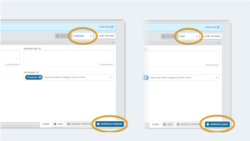
To approve the infographic or snippet, click the relevant button, depending on what you see:
- Approve & publish: The infographic or snippet is immediately published.
- Approve & save: The infographic or snippet is approved but keeps the Draft status. A journalist can then publish it at the right time.
Approve your own code as an expert coder
As an expert coder, you can approve your own code. In this case, you create and approve the dynamic infographic or snippet in Pangea CMS. The journalist can then publish the infographic or snippet later without requesting further approval.
To create a new infographic or snippet:
- Go to Create > Interactive.
- Depending on what you want to create, select either Dynamic infographic or Snippet.
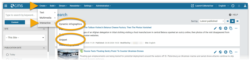
A dialog opens, which guides you through the required settings one step at a time. Follow these steps:
- Select a layout
- Add a title
- Paste your code
- Save the infographic or snippet
- Approve the infographic or snippet
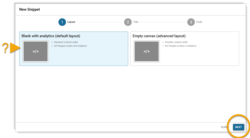
Select a layout
Under Layout, select the most appropriate layout for your code.
For detailed information about the differences between these layouts, see the following article:
After selecting a layout, click Next.
Add a title
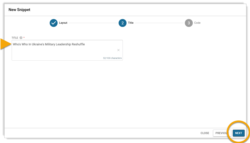
Enter a title to help the journalist find and identify the infographic or snippet. The journalist will change the title before publishing, so it does not need to be perfect.
After adding the title, click Next.
Paste your code
Under Code, paste your code.
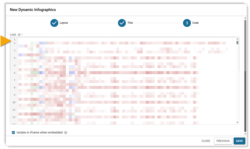
Then, decide whether to keep Isolate in iFrame when embedded ticked. In most cases, keep it ticked. For more information about this option, see the following articles:
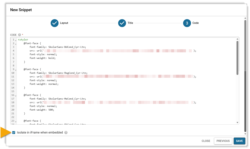
Save the infographic or snippet
After pasting the code, click Save.
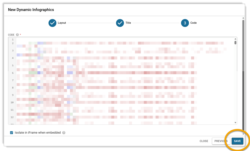
After you click Save, Pangea CMS checks for forbidden code. If Pangea CMS detects forbidden code, it flags the code and you cannot save the infographic or snippet.
You need to remove or update the forbidden code before saving.
For a list of all forbidden code, see the following article:
If Pangea CMS does not detect any issues, it saves the infographic or snippet. The dialog closes and the edit page for the infographic or snippet opens. The infographic or snippet has the Draft status.
Approve the infographic or snippet
You do not need to request approval. As the coder and reviewer, you can approve the code directly.
Click Approve & save. You do not need to add a category or complete any additional settings.
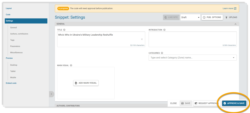
The edit page closes.
When a journalist opens the edit page, they see the Approved badge.
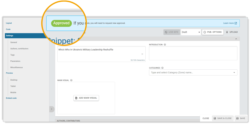
The journalist can complete the remaining settings and publish the infographic or snippet at any time without requesting further approval.
Enable notifications
Pangea CMS can notify you every time a journalist requests approval for a dynamic infographic or snippet on a site where you have approval rights. For instructions, see the following article: