What's inside this article:
- Basic information
- Find the layout options
- Select a layout for a dynamic infographic
- Select a layout for a snippet
Basic information
This article describes the different layout options for dynamic infographics and snippets.
The information is for journalists and reviewers:
- Journalist: Selects a layout when creating a new infographic or snippet.
- Reviewer: Checks that the selected layout is appropriate for the code. If an expert coder creates the code, the coder selects the layout instead of the journalist and also acts as the reviewer.
For detailed information about these roles and the approval process for infographics and snippets, see the following article:
For instructions on how to create infographics and snippets, see the following articles:
Find the layout options
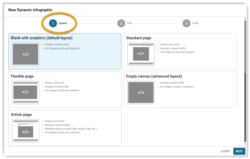
When you create a new dynamic infographic or snippet, a dialog guides you through the required settings one step at a time. Select a layout under Layout.
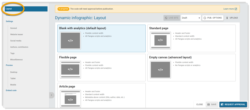
On the edit page for an existing dynamic infographic or snippet, select Layout in the left menu to check and change the selected layout.
Select a layout for a dynamic infographic
To select the right layout for a dynamic infographic, you need to understand what is in the code. If you are not sure which layout to select, ask an expert coder in your organization.
Five layouts are available:
- Blank with analytics (default)
- Flexible page
- Standard page
- Article page
- Empty canvas (advanced)
This is how they compare:
| Layout | Header and footer | Scripts and analytics | Full article layout | Content width |
|---|---|---|---|---|
| Blank with analytics | ✘ | ✔ | ✘ | Flexible |
| Flexible page | ✔ | ✔ | ✘ | Flexible |
| Standard page | ✔ | ✔ | ✘ | Standard |
| Article page | ✔ | ✔ | ✔ | Standard |
| Empty canvas | ✘ | ✘ | ✘ | Flexible |
Find more details about the criteria below:
Header and footer
Some layouts (Standard page, Flexible page, Article page) include your website header and footer. The coder does not need to add them in the code.
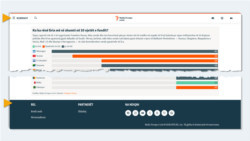
Other layouts (Blank with analytics, Empty canvas) do not include your website header and footer. With these layouts, the expert coder must add the header and footer in the code. This is helpful for microsites and special projects that use a custom header and footer.
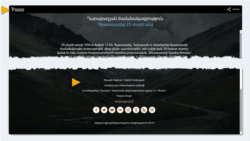
Scripts and analytics
Almost all layouts include Pangea scripts and analytics. This means:
- The layout includes analytical code, so you can track engagement with the infographic through tools such as Adobe Analytics.
- The layout includes the HTML boilerplate (<html>, <head>, <meta>, and <body> tags). These tags should not be repeated in the code.
Only the Empty canvas layout does not include Pangea scripts and analytics. With this layout, the expert coder must define the HTML boilerplate in the code. Unless the coder adds the correct analytical code manually, engagement with the infographic cannot be properly tracked.
IMPORTANT: We do not recommend the Empty canvas layout for general use.
Full article layout
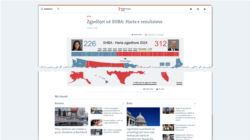
The Article page layout includes the metadata and navigation elements that appear on article pages. It includes:
- The Share button
- The following metadata at the top of the page:
- Primary category label
- Title
- Authors
- Publication date
- Introduction (if Display introduction is ticked)
- The following items at the bottom of the page:
- Category links
- You Might Also Like (if assigned to the primary category)
The journalist adds the title, categories, authors, and introduction on the infographic edit page in Pangea CMS.
Content width
Some layouts (Blank with analytics, Flexible page, Empty canvas) offer flexible content width. With these layouts, the coder can set the content width in the code. By default, the content occupies the full page width.
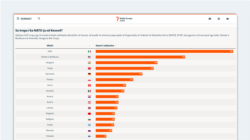
Other layouts (Standard page, Article page) offer standard content width. With these layouts, the content occupies the central column, with margins on both sides (the same as on article pages).
Select a layout for a snippet
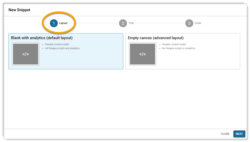
Only two layouts are available for a snippet:
- Blank with analytics (default)
- Empty canvas (advanced)
The Blank with analytics layout includes all Pangea scripts and analytics. This means you can track engagement with the snippet through tools such as Adobe Analytics.
The Empty canvas layout does not include Pangea scripts and analytics. Engagement with the snippet cannot be properly tracked, unless the expert coder manually adds the correct analytical code.
IMPORTANT: We do not recommend the Empty canvas layout for general use.