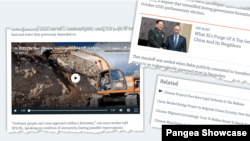
What's inside this article:
- Basic information
- Related content
- Inline 'see also' links
- Direct embeds
- Contextual links
- Banners
- You Might Also Like (YMAL)
Basic information
This article explains different ways to share links and other content in articles, with guidance on when to use each method to help readers discover other content without compromising the readability of the current article.
Related content is a collection of links that appears below the article body. These links are set individually for each article. When you create an article in Pangea CMS, you can manually add related content from the article edit page.
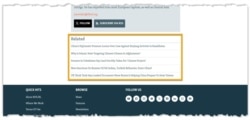
Related content guidelines
When adding related content:
- Ensure relevance. Link to content that relates to a theme or topic discussed in the article. Avoid linking content just because it is recent or currently trending.
- Keep the list short and focused. An overly long list can overwhelm your readers and reduce the chance of engagement.
Related content or inline 'see also' link?
When linking to other articles, choose the right approach:
- Inline 'see also' links work best when the linked article directly relates to the surrounding text. Place these links where they flow naturally, letting readers immediately explore a specific topic in depth.
- Related content links (below the article body) let readers to finish the current story first. This approach avoids interrupting the reading experience with links to other topics.
To learn more about 'see also' links, see Inline 'see also' links.
Add related content
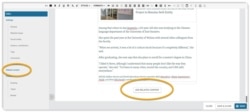
On the article edit page, add related content using one of these methods:
- Click the Add related content button under the main content.
- Click Related content in the left panel.
Inline 'see also' links
A 'see also' link is a visually prominent card that previews another story. These links appear inline (between paragraphs of text).
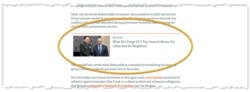
Guidelines for 'see also' links
When adding 'see also' links:
- Use them sparingly. Too many of these links in the article body can disrupt the reading experience.
- Ensure strong relevance. Link to content that directly relates to the specific point being discussed.
- Place them thoughtfully. Add the link where it connects naturally to the surrounding text, ideally after introducing the related topic.
Insert a 'see also' link
To get started inserting a 'see also' link:
- Position the cursor where you want to insert the link.
- Click the Insert embedded content button.
For detailed instructions, see the following article:
Direct embeds
When you directly embed an item, the content is normally interactive on the page. For example, readers can watch an embedded video without leaving the article.
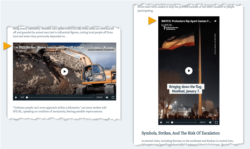
Guidelines for direct embeds
When using direct embeds, follow the same guidelines as for 'see also' links: use sparingly, ensure relevance, and place thoughtfully.
Guidelines for videos
Videos often appear as direct embeds on article pages. However, videos can also be shared as links. The best choice depends on the video's content:
- Shorter videos that directly relate to the surrounding text work well as direct embeds. This can include explanatory videos and footage showing described events.
- Longer videos that introduce new topics normally work better as links.
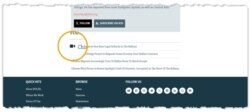
When a video is linked in related content, the video icon appears with the link. This helps readers make informed choices about what content to open. You can also share videos as 'see also' links, but these links do not show the video icon.
Insert a direct embed
To get started inserting a direct embed:
- Position the cursor where you want to insert the item.
- Click the Insert embedded content button.
For detailed instructions, see the following article:
Contextual links
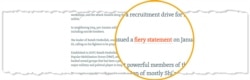
Contextual links are hyperlinks within the article text. They provide links to related pages that add helpful context without interrupting the reading flow. Contextual links are useful for sharing sources and allowing readers to verify your claims.
Guidelines for contextual links
When adding contextual links:
- Link only when helpful. Choose content that genuinely helps readers understand the topic.
- Use descriptive link text. Choose text that clearly indicates what the reader will find.
You can place contextual links to your own content or to external pages.
Link to your own content
Link to your own content when possible. This gives you control over the linked content and helps avoid broken links.
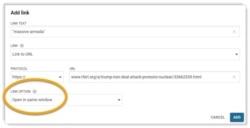
How to configure: Set internal links to open in the same tab. When you insert the link on the article edit page, select Open in same window under Link option.
Link to external pages
Be selective when linking to external pages. Choose authoritative, reliable sources that are likely to remain accessible.
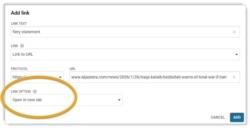
How to configure: Set external links to open in a new tab. When you insert the link on the article edit page, select Open in new tab under Link option.
For detailed instructions, see our Text editor features article.
Banners
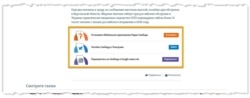
You can display clickable banners on article pages. Common uses:
- Promote social media accounts
- Promote newsletter subscriptions
Guidelines for banners
- Use them sparingly. Avoid placing multiple banners in one article.
- Position the banner at the bottom of the content. This approach avoids interrupting the reading experience. Clickable banners in the middle of stories may disrupt and confuse your readers.
Insert a banner
Reusable banners are saved as snippets in Pangea CMS. To insert a banner, embed the snippet on your article page. For instructions, see the following article:
You Might Also Like (YMAL)
A 'You Might Also Like' (YMAL) is a collection of recommended content that appears below the body on article pages. An engaging and well-organized YMAL can increase the time spent on your site by encouraging readers to explore other pages.

YMAL is not configured per article. Instead, YMAL is assigned at the category level. All articles with the same primary category show the same YMAL automatically.
YMAL vs. related content
An article can have both related content and YMAL. In this case, the related content appears above the YMAL.
YMAL serves a different purpose than related content. While related content is directly related to the article's topic, YMAL promotes a broader collection of content that readers might find interesting.
Build and manage YMALs
Web editors can build and manage YMALs from the You Might Also Like list page in Pangea CMS.
For detailed information, see the following articles: