What's inside this article:
- Basic information
- Layout options for see also links
- Insert a single see also link
- Insert multiple see also links
Basic information
User groups: Contributor_2020, Journalist_2020, Editor_2020, Master Editor_2020
About user groups
This article explains how to insert a Pangea content item on a content page as a see also link.
Two ways to insert Pangea content
There are two ways to insert a Pangea content item on a content page:
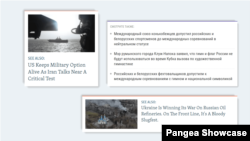
- See also link: The content appears as a card-style link (similar to a social media preview) that directs readers to a separate content page.
- Direct embed: A direct embed is normally interactive on the page. For example, readers can watch an embedded video without leaving the article.
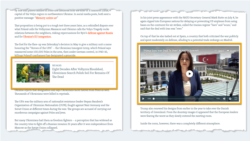
This article covers see also links. For information about direct embeds, see the following article:
What is Pangea content?
Pangea content is any content created and published through Pangea CMS. You can insert the following content types as see also links:
- Text:
- Article, Blog, Factcheck, Feature, Feature story, Live blog, News, Transcript
- Multimedia:
- Audio clip, Audio feature, Broadcast program, Document, Photo gallery, Slider gallery, Video
- Interactive:
- Dynamic infographic, Poll, Quiz, Static infographic
NOTE: You can link to content from your own site or from another site within your An entity is one of the three media organizations that use Pangea CMS: Radio Free Europe / Radio Liberty (RFE/RL), Voice of America (VOA), and Office of Cuba Broadcasting (OCB).. Content appears in its original language.
Layout options for see also links
Single link
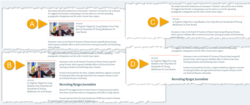
When you insert a single see also link, four layout options are available:
- (A): Center (with image): The link occupies the full content width and shows an image.
- (B): Side (with image): The link is attached at the side of the content and shows an image.
- (C): Center (title only): The link occupies the full content width and shows only the item title, without an image.
- (D): Side (title only): The link is attached at the side of the content and shows only the item title, without an image.
Multiple links
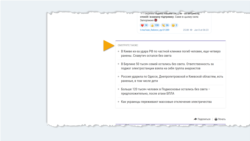
When you insert a block of multiple see also links, one layout is available: List. The block occupies the full content width and shows only the item title, without an image.
Insert a single see also link
You can insert a single see also link on the following text content pages:
- Article, Blog, Factcheck, Feature, Feature story, Live blog, News, Transcript
On the edit page for an article in Pangea CMS, follow these steps:
- Select Editor in the left menu.
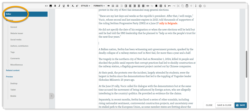
- In the content box, position the cursor where you want to insert the item.
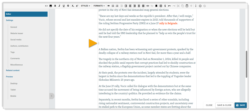
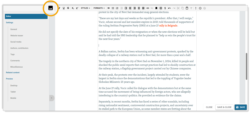
- Select the Insert embedded content button in the toolbar.
- On the Search & attach dialog, select Single item > Content.
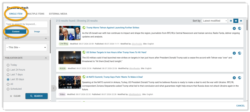
- If necessary, use the options in the left menu to filter the search results.
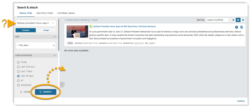
- Select the item you want to insert.
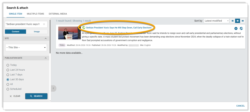
NOTE: For detailed information about the search options, see our Running a content search article.
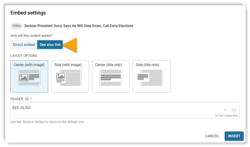
The Embed settings dialog opens. Find details about the available options below:
How will this content appear?
Select See also link.
NOTE: This is necessary for content types that you can insert using either method (direct embed or see also link).
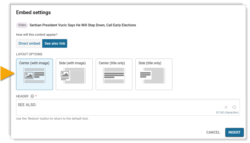
Layout options
Four layout options are available:
- Center (with image)
- Side (with image)
- Center (title only)
- Side (title only)
For information about these layout options, see Layout options for see also links.
Header
Under Header, set the header that appears above the content title in the card. The following options are available:
- Default: The default header for all see also links on your website is prefilled.
- Custom: You can enter a custom header that replaces the default header.
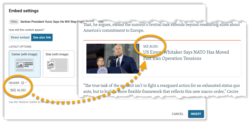
After adjusting the settings, click Insert.
Insert multiple see also links
You can insert a block of multiple see also links on the following text content pages:
- Article, Blog, Factcheck, Feature, Feature story, Live blog, News, Transcript
On the edit page for an article in Pangea CMS, follow these steps:
- Select Editor in the left menu.
- In the content box, position the cursor where you want to insert the item.
- Select the Insert embedded content button in the toolbar.
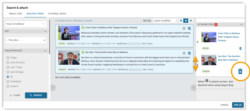
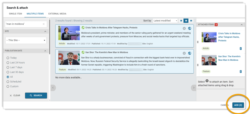
- On the Search & attach dialog, select Multiple items.
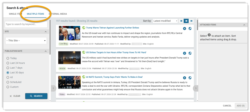
- If necessary, use the options in the left menu to filter the search results.
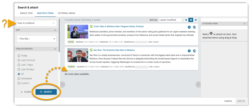
- Select each item you want to insert. These items appear under Attached items.
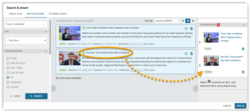
- If necessary, you can manage the attached items:
- Change the order using drag and drop.
- Click the Remove button to remove an item from the list.
- Click Add.
NOTE: For detailed information about the search options, see our Running a content search article.
The Embed settings dialog opens. Find details about the available options below:
See also links
One layout option is available for multiple links: List.
For information about this layout, see Layout options for see also links.
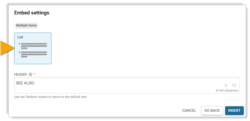
Header
Under Header, set the header that appears above the content titles in the block of links. The following options are available:
- Default: The default header for all see also links on your website is prefilled.
- Custom: You can enter a custom header that replaces the default header.
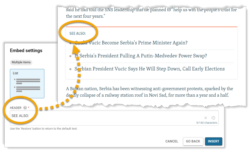
After adjusting the settings, click Insert.