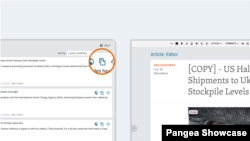
What's inside this article:
Basic information
This article explains how to use the copy feature in Pangea CMS.
The following options are supported:
- Copy an item that is published on your website.
- Copy an item that is published on a partner website. For example, RFE/RL websites can copy items from other RFE/RL websites.
When you copy an item:
- A copy (duplicate) of the item is created under your website in Pangea CMS.
- The copy has the Draft status and is not published.
Copying from partner websites
Pangea's copy feature supports publishing the same item on multiple websites in different languages. Copy an item from another website, localize the text, and then publish the item on your website.
This feature offers the following benefits over manually copying and pasting text from other websites:
- Speed. Copying an item is faster than manually recreating it.
- Good journalistic practice. When you copy an item, the URL for the original is automatically added as the A canonical URL tells search engines (such as Google) which URL represents the original version of the content. Only the canonical URL is indexed and listed on search engine results pages. Learn more for the copy.
Copying: Rules
Copy an item
Find the item on the Search page
To make a copy of an item, first find the item on the Search page.
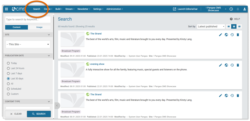
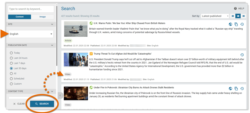
To find an item from another site:
- In the Sites selector, select the name of the site.
- Click Search to refresh the search results.
The results refresh to show only content from the selected site.
Make a copy
To make a copy of an item, click the Make a copy of item button.
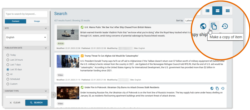
If you do not see this button, the item cannot be copied. Copying may be unavailable for the following reasons:
- Copying is not available for all content types. See Copying: Rules for the list of content types that can be copied.
- By default, copying is only available for published content. We can enable copying for unpublished content on request. For details, see Copy unpublished content.
If you see Make a clone of item instead of Make a copy of item, the item can only be cloned (not copied). To learn about cloning, see Cloning a content item.
After you make a copy, the edit page for the copy opens in the same tab. The settings and content exactly match the original item, with the following exceptions:
- The prefix [Copy] - is added to the title.
- The status of the copy is Draft.
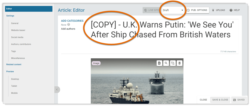
For content copied from a partner website, the following site-specific settings are removed in the copy:
- Authors
- Categories
- Related content
- Tags
No restrictions apply when you edit a copy. The copy is not connected to the original, so you can freely localize the content and change the settings.
Copy unpublished content
IMPORTANT: The option to copy unpublished content is not available by default. We can enable this option for individual services on request. If your service wants to start copying unpublished content, contact Pangea Customer Care.
Copying unpublished content is useful when all versions of the same item (original and copies) need to be published at the same time across multiple sites. The following types of content can be copied in an unpublished state:
- Article
- Blog
- Feature
- Feature story
- News
- Transcript
You can copy an unpublished item that has one of the following statuses:
- Scheduled
- Edited
NOTE: You cannot copy an unpublished item that has the Draft status. This is because the 'Draft' status signals that the content is still in progress.
Find more details and guidance below:
Copy an item with the 'Edited' status
You can copy an item that has the Edited status. The 'Edited' status signals that the item is in editorial review. Before copying, it is important to confirm that the item is finalized and ready to publish.

When you copy an item with the 'Edited' status, the system creates your copy with the Draft status. You will need to publish the copy manually.
We recommend publishing the copy at the same time as or after the original story. If the copy is published first, Search Engine Optimization (SEO) for the original story can be negatively impacted.
TIP: Automate publication by copying an item with the Scheduled status.
Copy an item with the 'Scheduled' status
You can copy an item that has the Scheduled status. The 'Scheduled' status signals that the item will be automatically published at a specific date and time in the future.

When you copy an item with the Scheduled status, your copy inherits the same publication settings as the original. This automates publication, ensuring that the copy and the original are automatically published at the same time.
To check the publication settings, click the Pub. options button on the edit page for the copy. The dialog shows the scheduled date and time for publication.
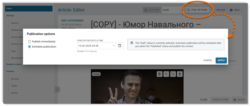
To save your copy with the same publication settings:
- Change the status of the copy from Draft to Published.
- Select Schedule / Schedule & close on the edit page for the copy.
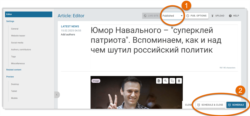
To learn more about scheduled publication in Pangea CMS, see Schedule publication.
Find copies
On the Search page in Pangea CMS, the following rules apply:
- Copies: All copies are marked with the 'Copy' chip. This chip signals that the item is a copy of another item.
- Clones: All clones are marked with the 'Clone' chip. This chip signals that the item is a clone of another item.
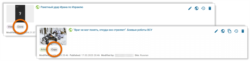
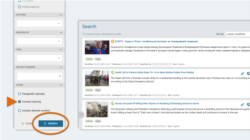
You can set the filters so the results will show only copies and clones. Follow these basic steps:
- Ensure Content is selected in the search filters.
- Under Other, tick Content sharing.
- Click Search.
The results refresh to show only copies and clones.
This article mostly provides information about copied content. For information about cloned content, see Cloning a content item.