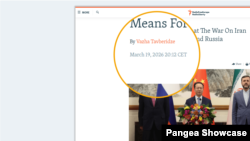
What's inside this article:
- Basic information
- Set up author bio pages
- Set up author highlights
- Set which content appears on bio pages
- Show separators on content pages
- Transliterate bio page URLs
- Delete an author
- Deactivate an author
- Merge authors
Basic information
User groups: Editor_2020, Master Editor_2020
About user groups
This article describes settings for managing authors and promoting them across your website.
For information about how to create a new author, see our separate guide: Creating an author.
Set up author bio pages
Every author on the approved authors list has a published bio page on the public site. It is not possible to have an author without a bio page.
An author bio page can include the following elements:
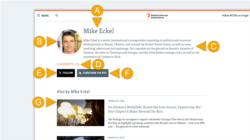
- (A): Name - Always displayed. Added in the author settings.
- (B): Image - Optional. Can be selected in the author settings. If no image is selected in the settings, the page displays a generic avatar.
- (C): Description - Optional. Can be added in the author settings.
- (D): Email - Optional. Can be added in the author settings.
- (E): Social buttons - Optional. Can be configured in the author settings.
- (F): Subscribe button - Always displayed if enabled for your site.
- (G): Content list - Optional. Can be enabled in the author settings. The content types that display here are configurable per site.
We recommend including at least an image and description on every bio page.
For a detailed description of the author settings, see Creating an author.
Set up author highlights
An author highlight is a short author biography that appears below the main content on articles. Author highlights help to build trust and credibility with your audience.
If Highlight author is enabled in the settings for an individual author, the author highlight appears automatically on all articles where the author is assigned.
An author highlight can include the following elements:
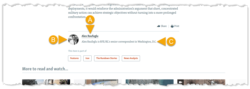
- (A): Name - Always displayed. Added in the author settings.
- (B): Image - Optional. Can be selected in the author settings. If no image is selected in the settings, the highlight displays a generic avatar.
- (C): Short description - Optional. Can be added in the author settings.
We recommend including all the above elements on every author highlight.
For a detailed description of the author settings, see Creating an author.
Set which content appears on bio pages
If Generate content is enabled in the author settings, a list of recent content appears on the bio page.
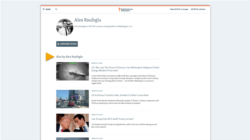
By default, the content list:
- Shows a maximum of 20 links.
- Includes links to the following content types:
- Article
- Dynamic infographic
- Feature story
- Photo gallery
- Slider gallery
- Transcript
- Video
These settings can be different for each site. For example, your site can show more content types.
NOTE: The same rules apply for all authors on your site. You cannot have custom rules for individual authors.
To update the configuration for your site, contact Pangea Customer Care.
Show separators on content pages
When one page has multiple authors, you can show separators between the names. For example, show a comma after each name. This ensures that the names read as separate authors.
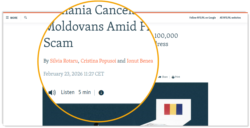
IMPORTANT: This feature must be enabled for your site before you can use it. To request feature access, contact Pangea Customer Care.
You can add custom separators on the Site localization page in Pangea CMS.
Use the following keys:
| Key | Global (default) value | Purpose |
|---|---|---|
| Article.ByAuthorSeparator | and | Separator before the final name in a list of multiple authors. |
| Article.ByAuthorSeparatorSimple | , | Separator between names in a list of multiple authors. |
For more information about site localization, see Using site localization.
Transliterate bio page URLs
If your site uses non-Latin script, you can enable automatic Transliteration is the process of converting text from one writing system to another based on phonetic similarity. For example, д in Cyrillic script is transliterated to d in Latin script. for bio page URLs.
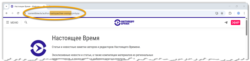
With transliteration enabled, the author name in the URL is automatically converted to Latin script. For example, тимофей-абрахин is converted to timofey-abrahin.
Transliteration applies only to the URL. The name on the bio page is not transliterated.
TIP: URL transliteration is recommended. URLs containing non-Latin script may not display correctly when shared on external platforms.
Request feature access
To enable transliteration for bio page URLs, contact Pangea Customer Care.
We also offer transliteration for URL slugs on content pages. Depending on your site configuration, we can do the following:
| URL slug transliteration | What we can do |
|---|---|
| Already enabled | Extend transliteration to bio pages. |
| Not yet enabled | Configure transliteration for both URL slugs and bio pages. |
NOTE: Transliteration for bio page URLs cannot be enabled independently of URL slug transliteration.
Delete an author
When you delete an author:
- The author and all their settings are deleted from Pangea CMS.
- The author name is removed from all previously published content pages.
- The author bio page is unpublished.
- The author can no longer be assigned to content pages.
This is useful if the author's name should no longer be publicly visible for privacy reasons. If an author no longer works for your organization but should still be associated with their previous content, you can deactivate the author instead.
To delete an author:
- Go to Settings > Authors in Pangea CMS.
- Find the author you want to delete.
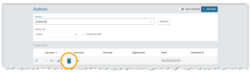
- Hover over the author name and click the Delete button.
- Click Delete to confirm the action.
The author is now deleted.
Deactivate an author
When you deactivate an author:
- The author can no longer be assigned to content pages.
- The author and all their settings stay available in Pangea CMS.
- The author name continues to appear on previously published content pages.
- The author bio page stays published.
This is useful if an author no longer works for your organization but should still be associated with their previous content. If an author's name should no longer be publicly visible for privacy reasons, you can delete the author instead.
To deactivate an author:
- Go to Settings > Authors in Pangea CMS.
- Find the author you want to deactivate.
- Hover over the author name and click the Edit button.
- In the selector at the top of the dialog, select Inactive.
- Click Save or Save & close.
The author is now inactive.
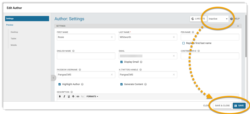
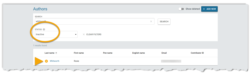
On the authors list, inactive authors are marked with the Inactive icon. To see inactive authors, you may need to select 'All' or 'Inactive' in the Status selector.
Merge authors
You can merge a group of two or more authors. Before merging, you select one author from the group to keep. This is the primary author. The remaining authors are treated as duplicates. When you merge a group of authors:
- The duplicate authors and all their settings are deleted from Pangea CMS.
- Content assigned to duplicate authors is reassigned to the primary author.
- On content pages, the name of the primary author replaces the duplicates.
- Only the bio page for the primary author stays published. Duplicate bio pages are unpublished.
To merge a group of authors:
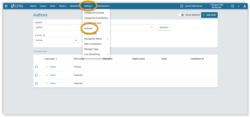
- Go to Settings > Authors in Pangea CMS.
- Tick the box next to each author you want to merge.
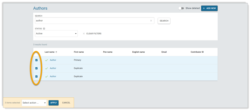
- Select Merge, then click Apply.
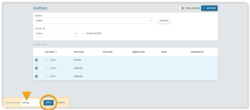
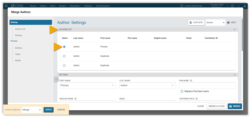
- On the authors list, select the primary author you want to keep.
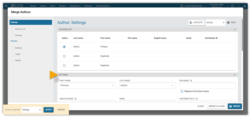
- Under Settings, you can update the primary author settings if needed.
- Click Merge or Merge & close.
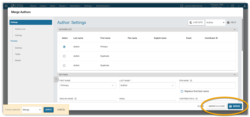
The authors are now merged.
For a detailed description of the author settings, see Creating an author.